
Settings : Edit My Profile
Here's how to update your personal details, separate from your company profile.
Step 1 — Open Settings → My Profile
Update your first name, last name, email address, and mobile phone number here. Your email shows a green "Verified" badge once confirmed.
This is also where you change the business phone number shown on the Company tab — that field sends you here. Enter the new number and click Update, and you'll get a confirmation dialog before anything saves.
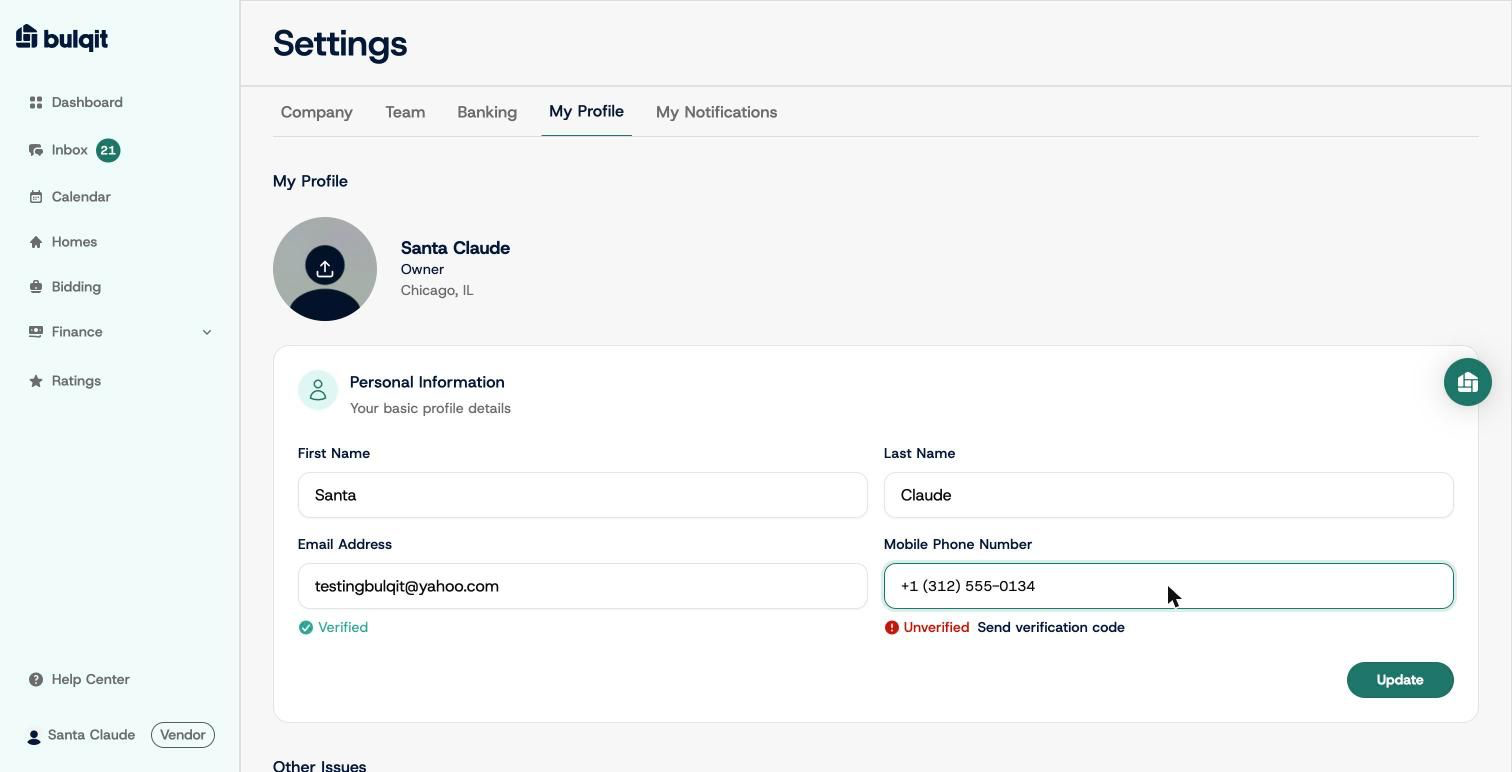
My Profile tab with a mobile number entered, showing Unverified
Step 2 — Confirm and verify the new number
Confirming saves the number, but it stays "Unverified" until you complete SMS verification. A 6-digit code modal appears immediately. Enter the code to verify. If you miss it, use the "Send verification code" link next to the number.
Until you verify, that number won't receive Bulqit notifications or Member messages. Don't stop at Update.
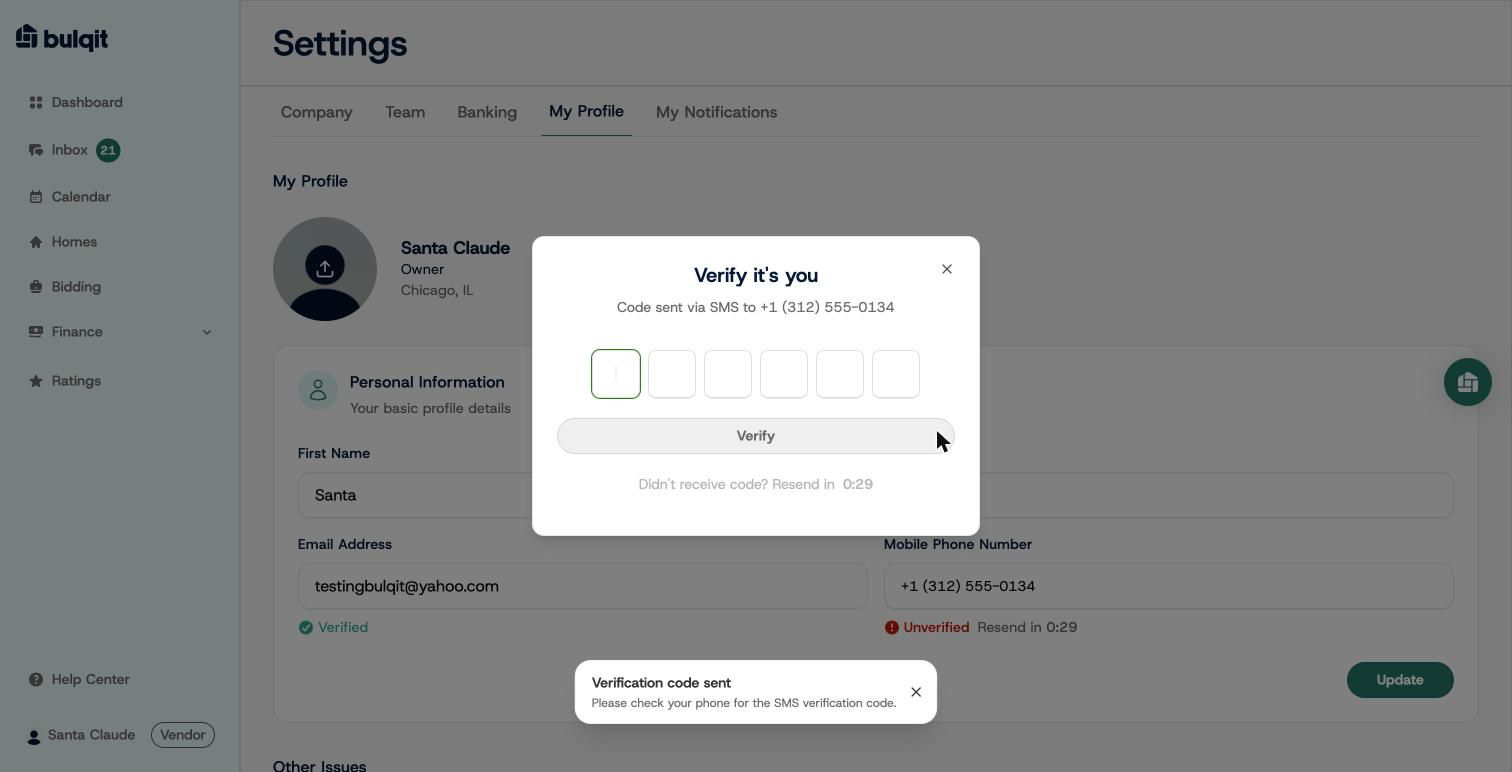
Verify it's you: a 6-digit SMS code modal for the new phone number