
Ratings : View & Filter Reviews
Here's how to read Member reviews and respond to the ones that need attention.
Step 1 — Open Ratings → Reviews
Three tabs: All, Low Ratings, and Needs Response. Each card shows the service, the Member and address, the Block and date, the star rating, and the Member's written feedback.
Start with Needs Response as those are the ones sitting open.
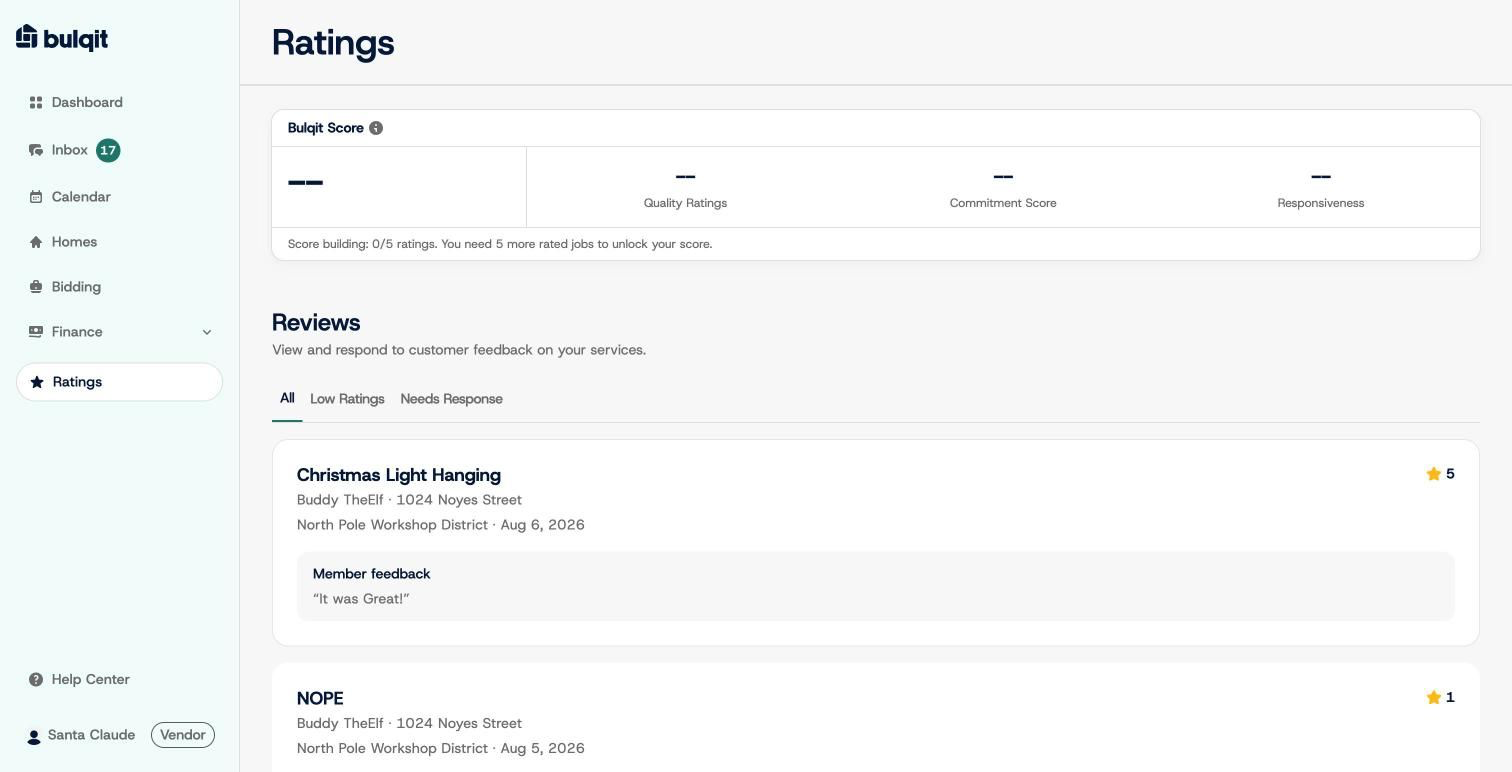
Reviews list
Step 2 — Respond to a flagged review
A review tagged "Needs Response" gives you two options. "Open Chat" drops you into your Inbox thread with that Member, which is the right move when the issue needs fixing.
"Mark As Resolved" opens a response form with the job, rating, and feedback shown again, plus a required response of at least 20 characters. The minimum length is there because a one-word response doesn't tell us what happened.
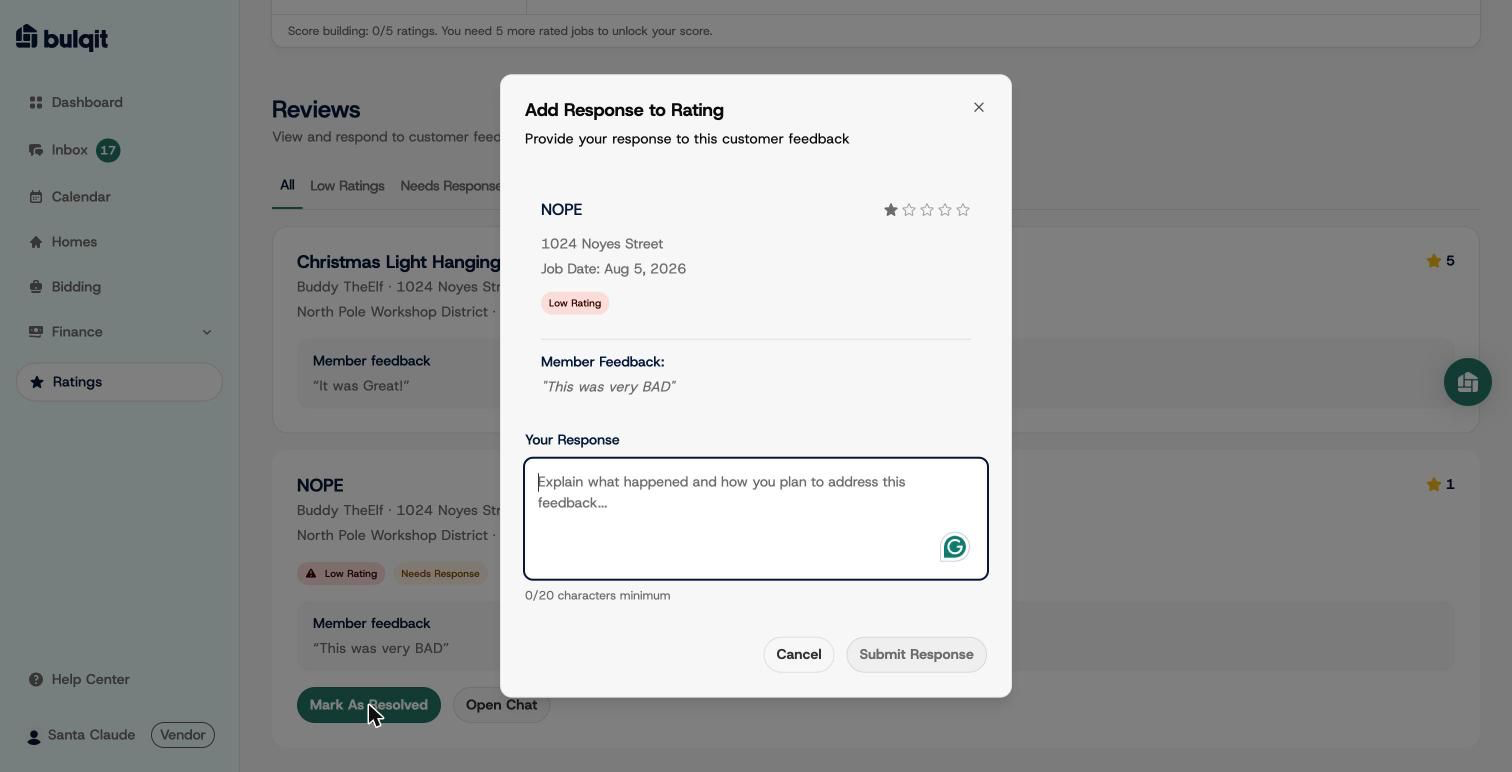
Add Response to Rating modal
Step 3 — Submit
You'll see a confirmation and your response appears on the review card. The "Needs Response" tag clears. If the rating was low, the "Low Rating" tag stays that's a record of the rating, not an open task.
If you believe a review is inaccurate or was left in error, contact Bulqit Help. Don't respond in anger; responses are permanent.