
Settings : Phone Number + Notification Settings
Here's how to add or update your phone number and choose how Bulqit reaches you. Add and verify your number first, since SMS notifications won't work without it.
Step 1 — Navigate to the Member Dashboard
Click your name to open the account menu, then click Settings.
Step 2 — Enter Your Phone Number
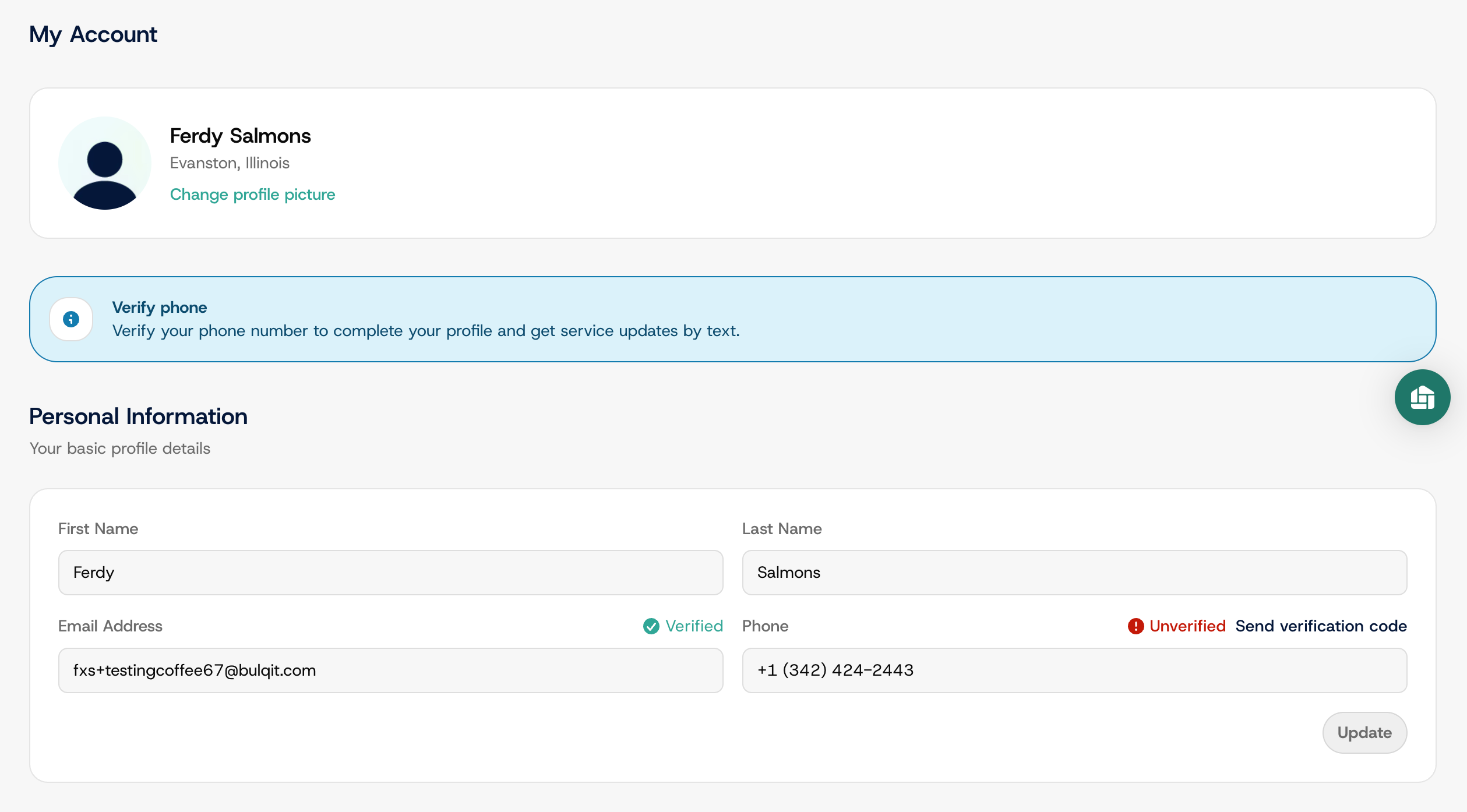
If you gave a number at signup it's already here, marked Unverified with a "Send verification code" link. Click it and enter the code we text you. If the field is empty, type your number first, then verify.
Until your number is verified, no SMS notifications will reach you, including service reminders and payment alerts.
Step 3 — Open Notification Settings
Click Notifications in the settings menu.
Step 4 — Set Your Notification Preferences
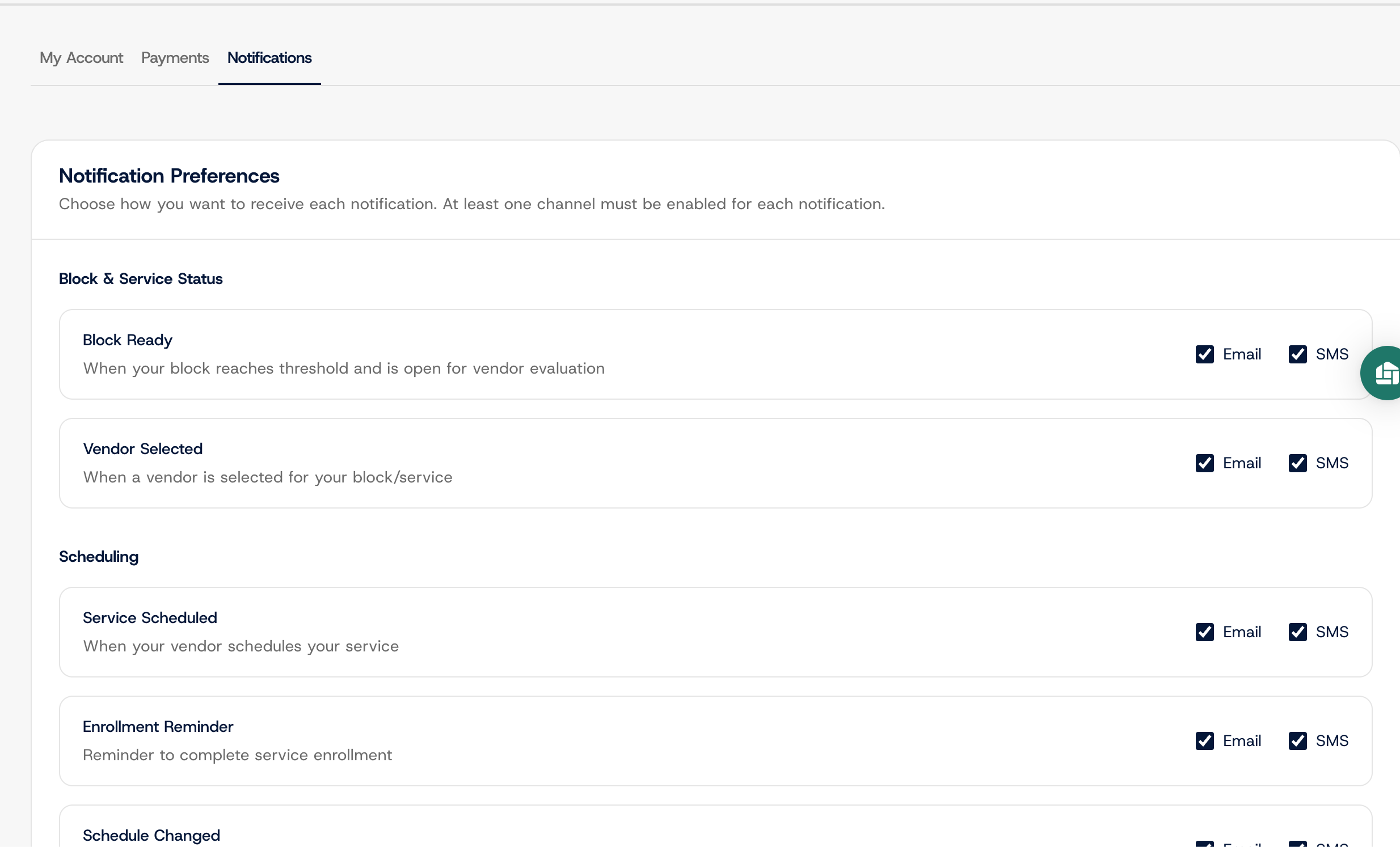
Every notification has its own Email and SMS checkbox, so you can take some by text and others by email. There's no single switch that turns off a whole channel.
At least one channel has to stay on for each notification. When you uncheck one, the other locks. These cover things you need to know about, such as when a visit is scheduled or a payment fails.
Step 5 — Save Preferences
Click Save Preferences. Nothing saves until you do, and there's no reset to defaults, so change one thing at a time if you're unsure.