
Settings : Change a Credit Card
Here's how to add a new card and make it your default payment method. Most Members do this when a card expires or they switch banks.
Step 1 — Navigate to the Member Dashboard
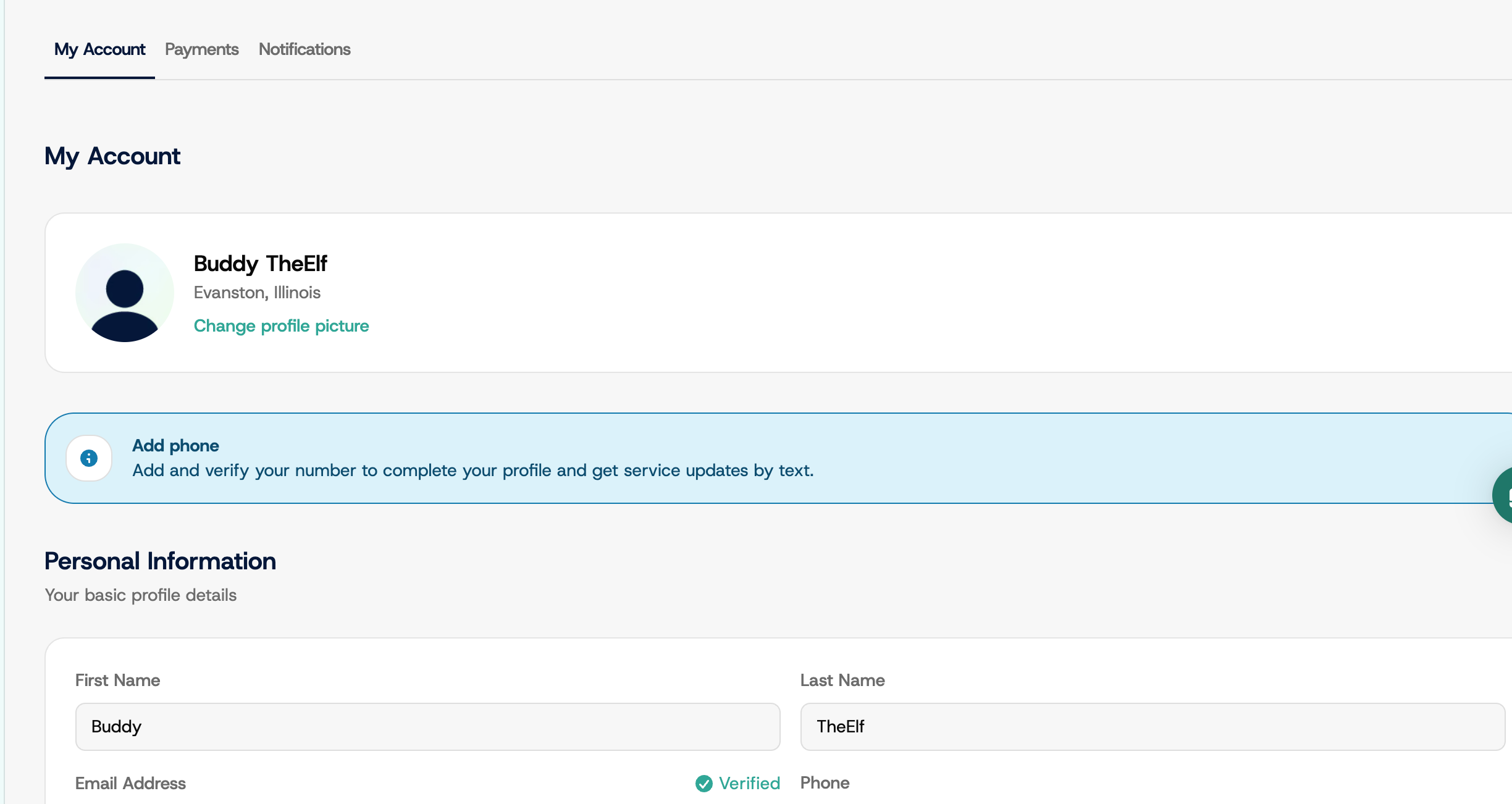
Click your name in the bottom left of the sidebar to open the account menu.
Step 2 — Open Settings, then Payments
Click Settings, then the Payments tab. All of your saved payment methods live here.
Step 3 — Add a New Payment Method
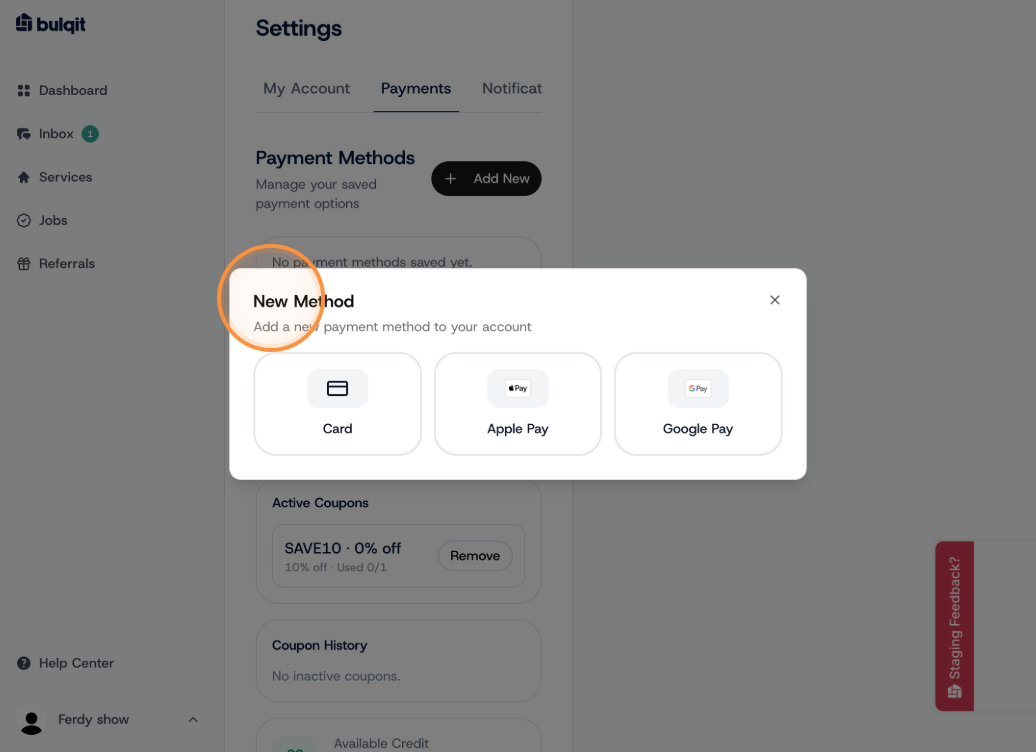
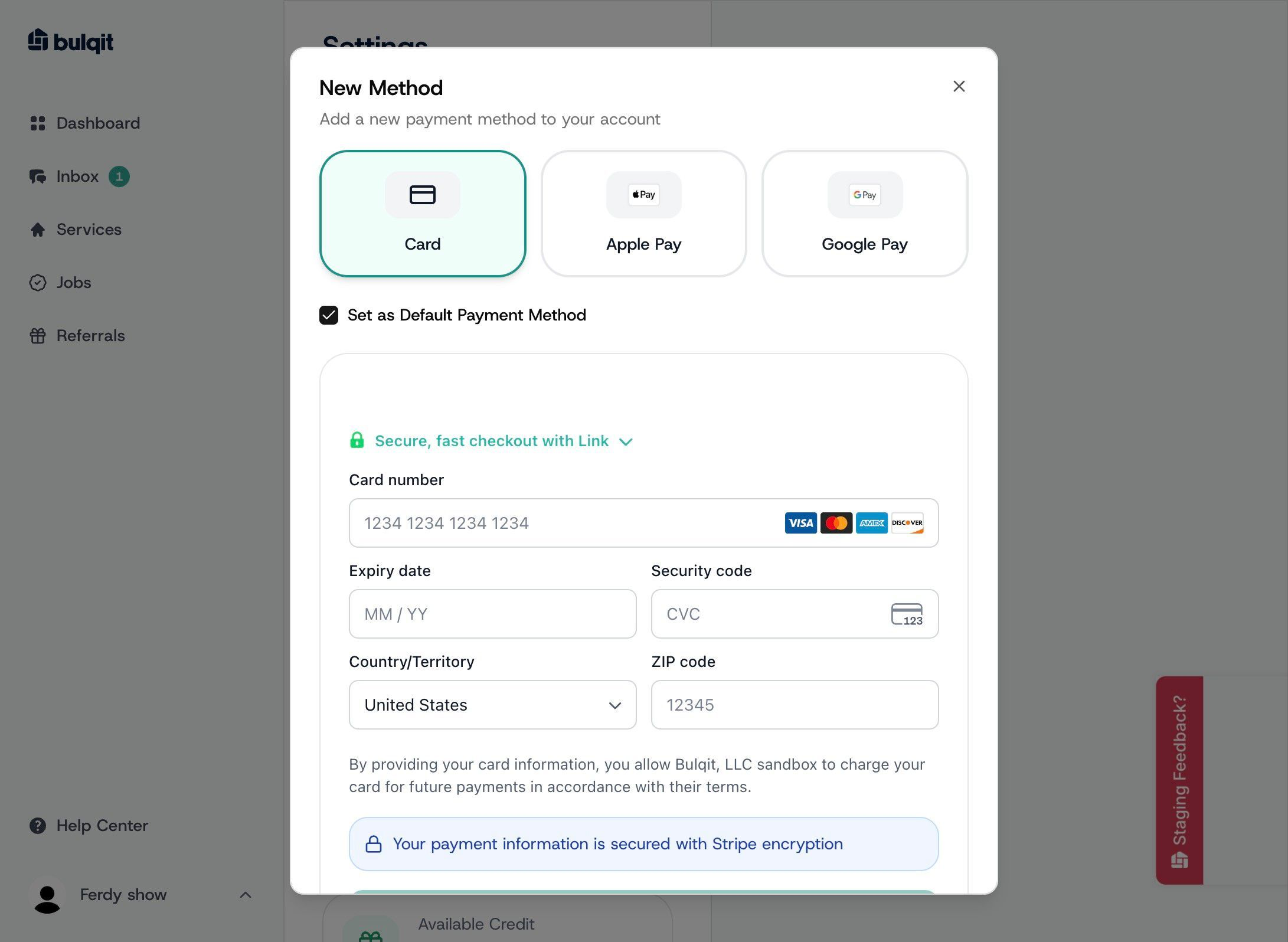
Click Add New, then New Method. When asked for the payment type, choose Card. There's a "Set as Default Payment Method" checkbox in this window if you want to make the switch in one step.
Step 4 — Enter Card Details
Enter your card number, expiration date, and CVC, then click Add Payment Method. Card details are handled by Stripe, our payments partner, and are never stored by Bulqit.
Step 5 — Set as Default
If this is your only card, it becomes the default automatically. If you have more than one, click Default next to the card you want to use.
The change applies to your next charge. Your default card is charged when a service visit is completed, not on a fixed monthly date.
Removing an old card won't affect completed visits or invoices already issued.